After purchasing audiobooks on Audible you may want to store the files on your computer in case Amazon decides to pull the books later on. Audible allows you to download encrypted copies of your books from your account library.

Clicking on the “Download” link for any audiobook will download a .aax file to your computer. This file contains audio data that has been encrypted using a 4-byte key unique to your Audible account. Because the key is so short it is trivial to break it using brute force and there is plenty of software available specifically for that purpose. In this blog post, I’ll be covering two ways to decrypt the file.
OpenAudible
OpenAudible a free open-source graphical program available for Linux, Windows, and macOS. It’s specifically designed to remove DRM from your Audible files and hides a lot of the complexity.
EDIT: OpenAudible appears to have become closed source and paid software. You can buy it if you want or try to find an old version, but see below for a free method.
Once you install OpenAudible from its website you can drag and drop the .aax files you downloaded from Audible into it. They will show up in a list at the bottom of the window.

With your audiobooks loaded select them (Ctrl + A) and right-click to select “Convert to MP3”.
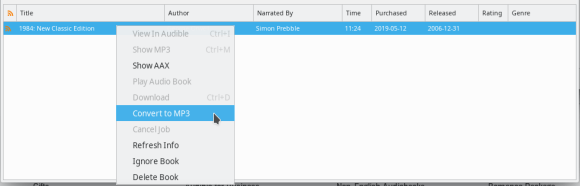
OpenAudible will convert each of your audiobooks to a DRM-free mp3 file and save them in the ~/OpenAudible folder on your computer. If you can’t find the mp3 files then right-click one of the books and select “Show MP3”.
One nice thing about OpenAudible over the FFMPEG method is that the book’s metadata (author, reader, publisher, etc.) will be preserved in the resulting mp3 file.
FFMPEG
ffmpeg is a popular free and open-source command line utility for processing video and audio. It can decrypt the Audible DRM but requires you to input the specific 4-byte encryption key unique to your Audible account. You can brute force your downloaded .aax files (you only need to get the key from one, and it will work for the others) using this website.
Once you’ve gotten your key you can use it to convert your .aax files to mp3s using ffmpeg like so (replace XXXX with your key):
ffmpeg -activation_bytes XXXX -i audiobook.aax audiobook.mp3Unfortunately, this does not appear to migrate the metadata to the new mp3 files created like the OpenAudible approach does.


 Kyle Piira
Leave a reply to Wojtek Cancel reply